eecs270.org
LabsLand Verification
LabsLand provides remote access to a real DE2-115 board so you can verify your design on hardware before lab signoff. This page walks through verifying Project 0; the same steps apply to every project.
Prerequisites
- A LabsLand account registered through the course join link (provided in lecture / on Canvas).
- A design that already simulates correctly in ModelSim or iverilog. LabsLand time is limited to ~2 minutes, one of the reasons it isn’t suitable for debugging.
Steps
1. Log in and open the IDE
Log into LabsLand and click DE2-115 IDE Verilog.
2. Upload your files
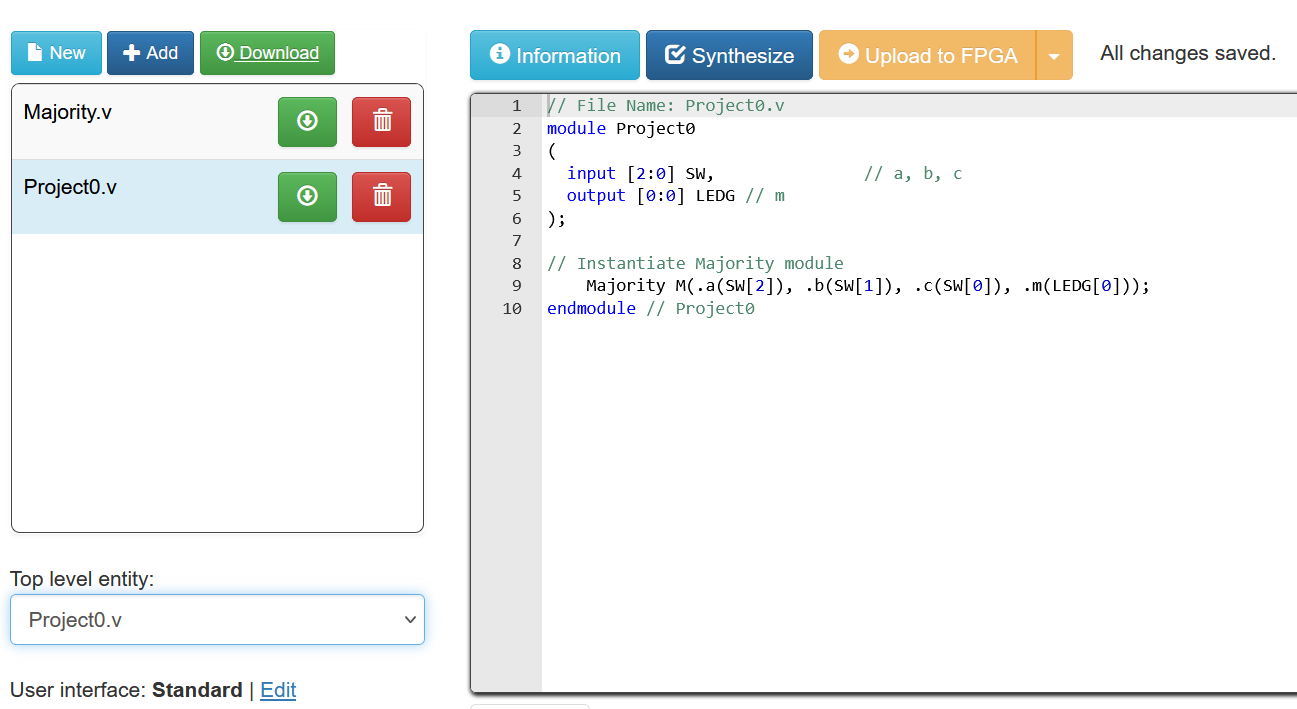
Click +Add and upload the top-level module and all dependencies. For Project 0, upload Project0.v and Majority.v. Do not upload your testbench, as it may interfere with the synthesis process. LabsLand synthesizes for hardware, and testbenches are simulation-only.
3. Set top-level entity and synthesize
Make sure the top-level entity is Project0, then click Synthesize. Synthesis takes a moment; watch for errors in the log.
4. Upload to FPGA
Click Upload to FPGA to program the board.
5. Test interactively
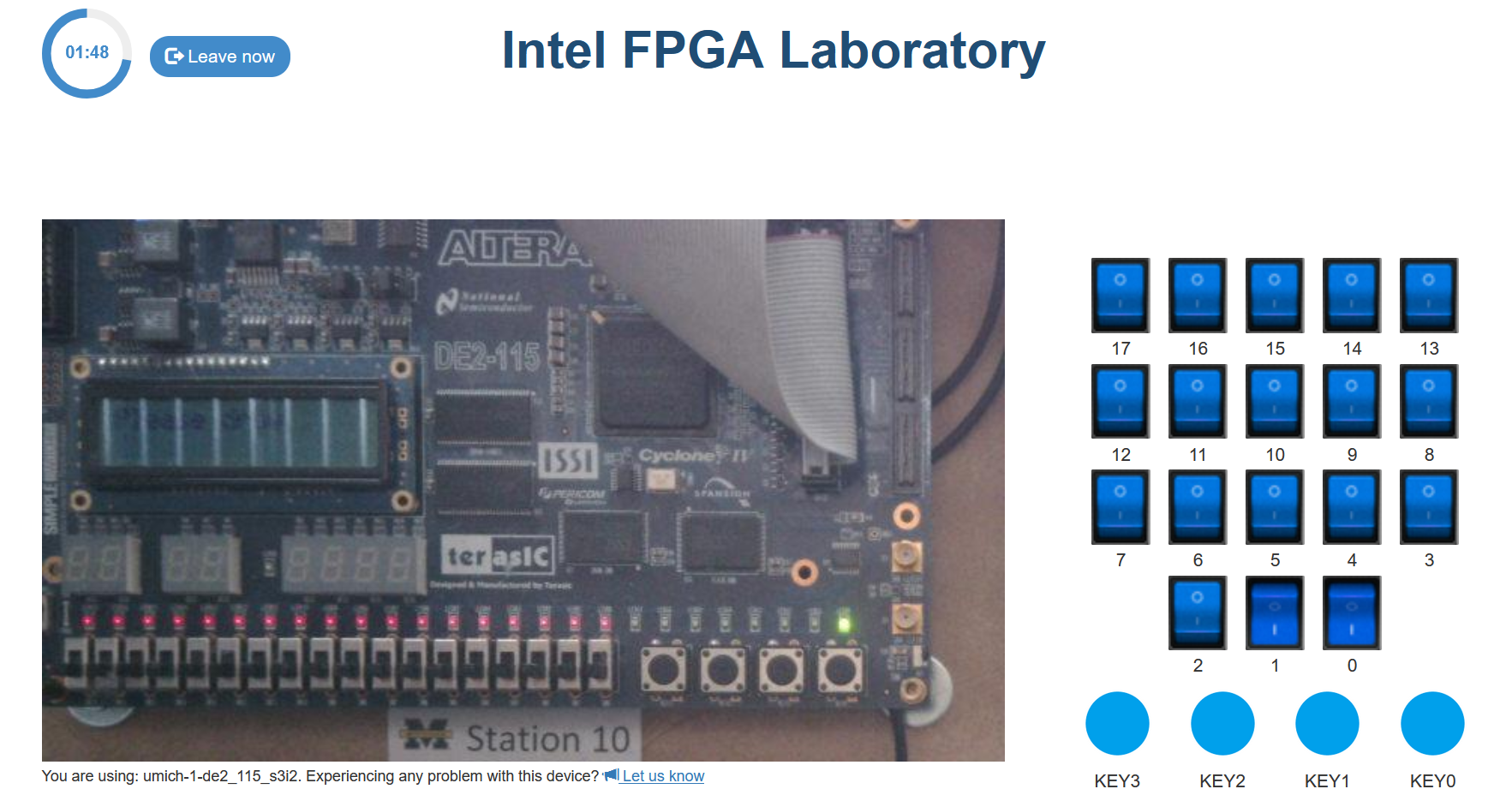
For Project 0, toggle the switch icons for SW[0], SW[1], SW[2] and verify that LEDG[0] lights up exactly when two or more switches are on. Walk through the truth table to convince yourself the design is correct.
Tips
- LabsLand input quirks. The web interface cannot register multiple simultaneous KEY presses with mouse clicks. Use the keyboard keys
0–3to driveKEY[0]–KEY[3]. This matters for projects that read multiple keys at once (e.g., Project 3). - Active-low signals. KEYs and HEX displays are active low. A pressed key reads
0; a lit segment is driven to0. - If hardware behavior diverges from simulation, check pin assignments in your top-level
Project*module first. Most LabsLand-only failures are I/O mapping mistakes (wrong switch index, missing bit, swapped HEX outputs).